
INDEX MATCH in Excel: Step-by-Step Guide (Better Than VLOOKUP)
INDEX MATCH is the analyst's preferred lookup formula in Excel — more flexible than VLOOKUP, robust to inserted columns, and capable of looking up in any direction. This guide walks through the syntax, a worked example with screenshots, the most common errors, and why INDEX MATCH is often considered more reliable than VLOOKUP in financial models.
See also: Excel Skill Test — Benchmark your spreadsheet level
What is INDEX MATCH?
INDEX MATCH is a combination of two Excel functions used together to perform lookups. INDEX returns a value from a given range based on a row position, and MATCH returns the position of a lookup value inside a range. Combined, they replace VLOOKUP — and do it better.
Why analysts prefer INDEX MATCH:
- It works in any direction — left, right, up, or down.
- It uses a direct range reference for the return column, so it doesn't break when columns are inserted or deleted.
- It can be faster than VLOOKUP on large datasets, especially in older versions of Excel.
- INDEX MATCH is often considered more reliable than VLOOKUP in financial models — particularly in models that get edited, restructured, or audited frequently.
INDEX MATCH Syntax
The standard INDEX MATCH pattern is:
=INDEX(return_array, MATCH(lookup_value, lookup_array, 0))
- return_array — the single column (or row) that contains the value you want returned.
- lookup_value — the value you are searching for (e.g. an Employee ID in a cell).
- lookup_array — the single column (or row) that contains the lookup_value. Must have the same number of rows as
return_arrayand start at the same row. - 0 — the match type. Always use
0for exact match on IDs and codes. Omitting it defaults to approximate match and can return wrong results.
Step-by-Step INDEX MATCH Example
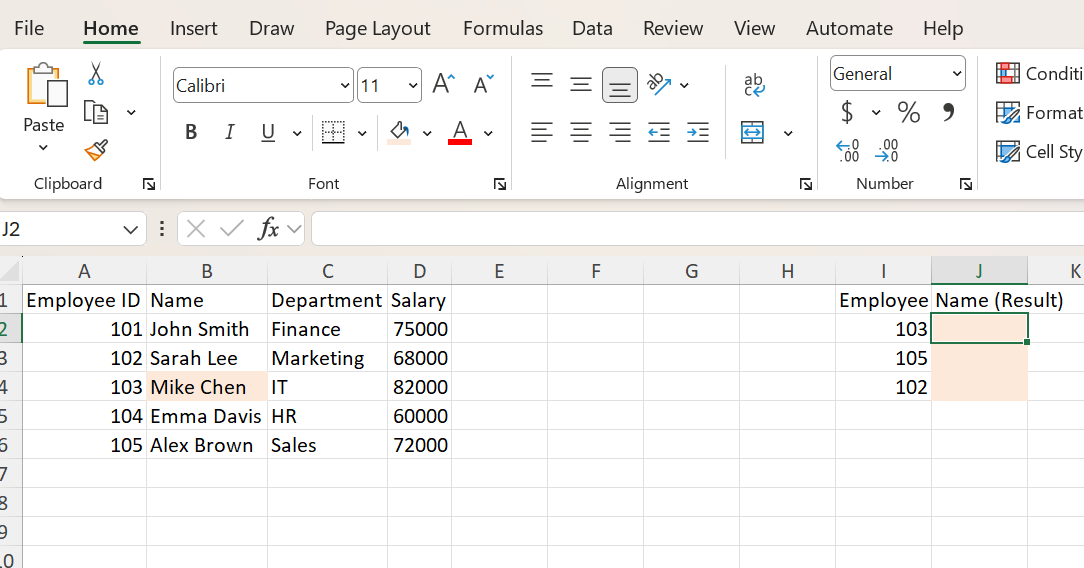
Here's an INDEX MATCH formula example in Excel. We'll look up an employee's Name by entering their Employee ID. The dataset has Employee IDs, Names, Departments, and Salaries in columns A–D (row 1 contains headers), with a small input panel where the user types an ID into I2 and the result returns in J2.
Step 1 — Select the result cell
Click cell J2, where the looked-up Name will appear.
Step 2 — Start the formula
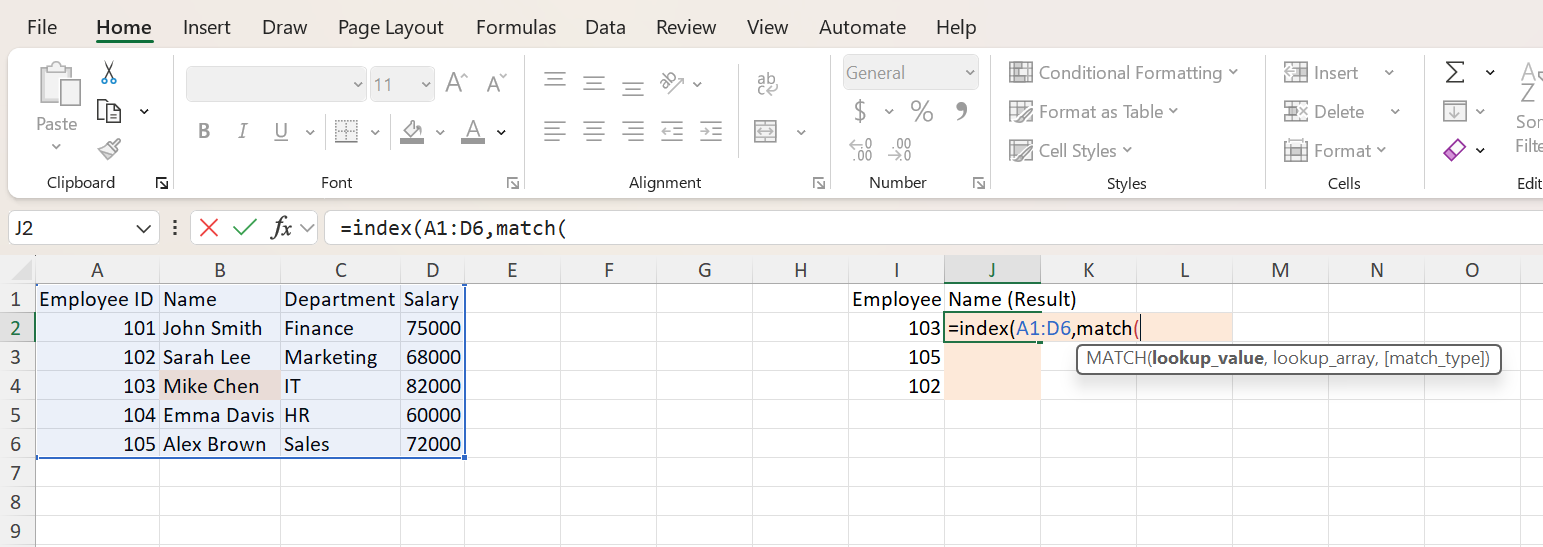
Begin typing:
=INDEX(A1:D6, MATCH(
A1:D6 is the full table. We'll use MATCH to find the correct row, then specify which column to return.
Step 3 — Complete the formula
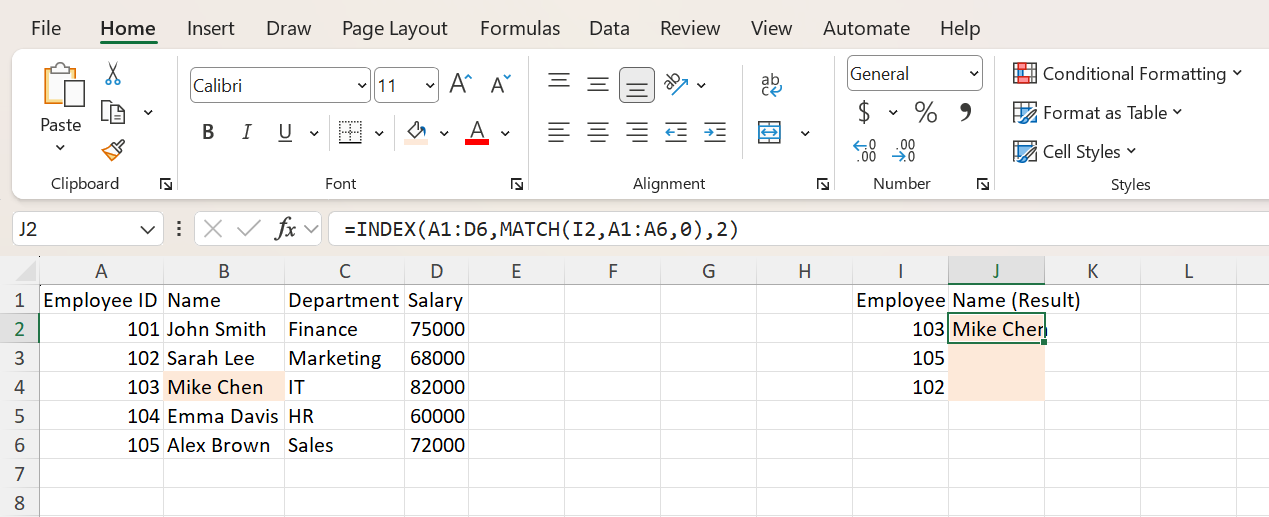
Finish the formula:
=INDEX(A1:D6, MATCH(I2, A1:A6, 0), 2)
How it works:
MATCH(I2, A1:A6, 0)returns the position of the Employee ID inI2within the lookup range (column A).INDEX(A1:D6, ..., 2)returns a value from the 2nd column of the selected table (Name).- The final argument,
2, specifies which column of the table to return. - The trailing
0ensures an exact match.
This version of INDEX MATCH uses the full table and explicitly specifies the column number to return — similar to how VLOOKUP uses a column index.
Note: this formula includes the header row for simplicity to match the screenshot. In practice, analysts typically exclude headers (e.g. A2:A6 and A2:D6) to avoid accidental matches on header text.
Alternative INDEX MATCH Pattern (Analyst Version)
While the example above uses a full table with a column index, most analysts prefer a cleaner version that directly references the return column.
=INDEX(B2:B6, MATCH(I2, A2:A6, 0))
B2:B6is the return column (Name).A2:A6is the lookup column (Employee ID).MATCHfinds the correct row.INDEXreturns the value from the specified column.
This version is more flexible and easier to audit, especially in financial models.
Why INDEX MATCH is Better Than VLOOKUP
| Feature | VLOOKUP | INDEX MATCH |
|---|---|---|
| Lookup direction | Left-to-right only | Any direction |
| Return column reference | Hard-coded number (col_index_num) | Direct range reference |
| Breaks if columns inserted | Yes | No |
| Flexibility | Limited | High — works for any layout |
For more on the older approach, see our step-by-step VLOOKUP guide.
Fixing INDEX MATCH Errors
Most INDEX MATCH errors fall into a few common buckets:
#N/A— value not found. The lookup_value isn't in the lookup_array, or there's a hidden mismatch — trailing spaces, hidden/non-printing characters, or a text-vs-number issue (e.g."103"vs103). UseTRIM()to strip whitespace, orVALUE()/TEXT()to align data types.- MATCH returning the wrong row. Almost always caused by omitting the trailing
0. Without it, MATCH defaults to approximate match and silently returns the closest value, which is rarely what you want for ID-style lookups. - Mismatched ranges. The
INDEXreturn_array and theMATCHlookup_array must have the same number of rows and start at the same row. Otherwise the result will be offset (and may look correct on some rows and wrong on others). - Text vs number mismatch. IDs stored as text won't match numeric inputs (and vice versa). Convert one side with
VALUE()or check the cell formatting. - Passing a 2-D range to MATCH.
MATCHexpects a single column or single row. Passing an entire table (e.g.A2:D6) returns#N/Aor#VALUE!.
Pro Tips (Analyst Angle)
- Always use
MATCH(..., 0). Never omit the third argument for ID-style lookups — exact match should be your default. - Lock your ranges with
$.$B$2:$B$6and$A$2:$A$6survive drag-fill;B2:B6does not. - Default to INDEX MATCH for new financial models. Cleaner audits, fewer foot-guns, and resilient to column inserts.
- Combine with
SUMIFSorIFERRORfor advanced patterns:=IFERROR(INDEX(B2:B6, MATCH(I2, A2:A6, 0)), "Not found").
When to Use INDEX MATCH
INDEX MATCH is the right call when:
- You're building or maintaining a financial model that will be edited and audited.
- Your dataset is large, and you care about calculation performance.
- Your columns may shift over time (inserts, deletes, restructuring).
- You need to look up to the left of the key column — VLOOKUP can't do this.
- You're replacing legacy VLOOKUPs as part of a model cleanup.
Frequently Asked Questions
Related Training
Ready to Get Faster?
Start practicing with hands-on Excel drills designed for financial professionals.